
Important deadline
Your EMI Initial Notification must be submitted by 6 July following the end of the tax year in which the options were granted (92 days after the end of the tax year).
You can submit as early as the day after the grant date — and it’s best to do it early to avoid last‑minute issues.
Contents📋:
-
Step 3: Submit your Initial EMI Notification
- Choose the notification type
- Enter grant details
- Answer key questions
Overview
Submitting your Initial EMI Notification ensures your EMI options qualify for tax‑advantaged treatment with HMRC. This guide covers:
- Registering your EMI scheme (first‑time only)
- Submitting your Initial Notification in the ERS portal
- Saving your confirmation correctly
Once your scheme is registered, future EMI notifications are much simpler — As you only need to register EMI once to cover all subsequent EMI notifications.
Before you begin
You’ll need:
- Access to PAYE Online (via Government Gateway)
- A PAYE reference number
- Your Company Registration Number
- Your Corporation Tax reference number
Not enrolled for PAYE Online? Registration can take up to 3 weeks, so allow enough time.
Important: You only register one EMI scheme. It can be used for all future EMI grants, regardless of design or grant date.
If your holding company doesn’t have a PAYE reference, you may register using a subsidiary’s PAYE reference. You’ll then tell HMRC during the Initial Notification that the options were granted by a different company (the holding company / TopCo).
Step 1: Register your EMI scheme (first‑time only)
- Log in to PAYE Online: https://www.gov.uk/paye-online
- Scroll to Employment Related Securities (ERS)
- Select Submit Employment Related Securities returns

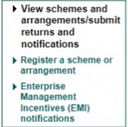
4. Click Register a scheme or arrangement
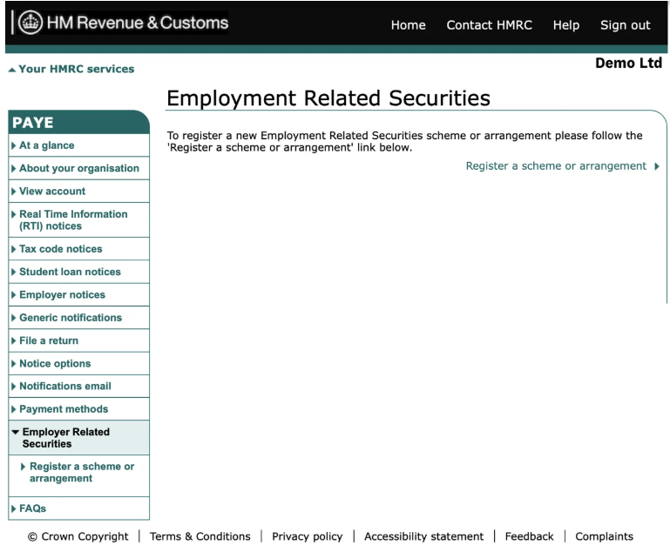
5. Select Enterprise Management Incentives (EMI) → Next
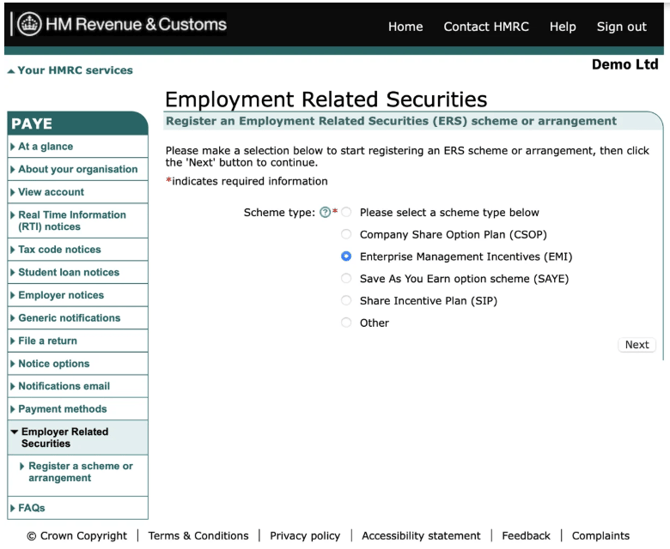
Scheme details you must enter
6. Enter your scheme details:- Tax year the scheme starts
- This is the tax year in which the options were granted (not the vesting start date).
- Entering the wrong tax year may lead to HMRC penalties.
- Scheme name
- Use something clear, e.g. [Company Name] EMI Scheme.
- Corporation Tax reference number (optional)
- Company registration number (optional)
7. Review everything, then click Next.
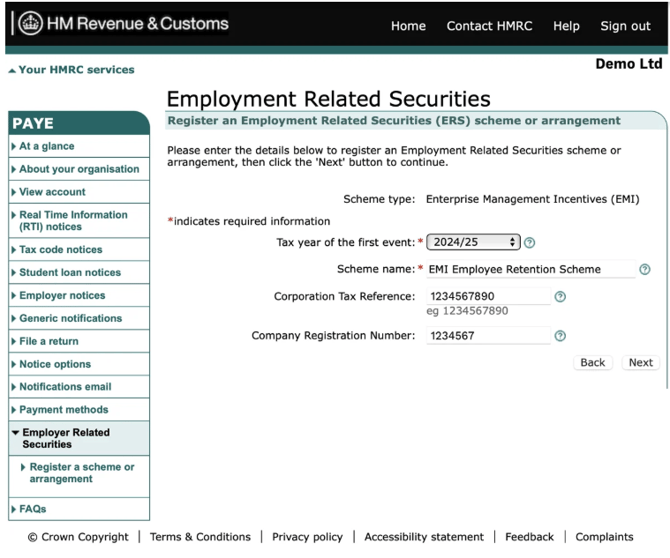
8. When you are happy all the information is correct, click Confirm to go to the declaration page.
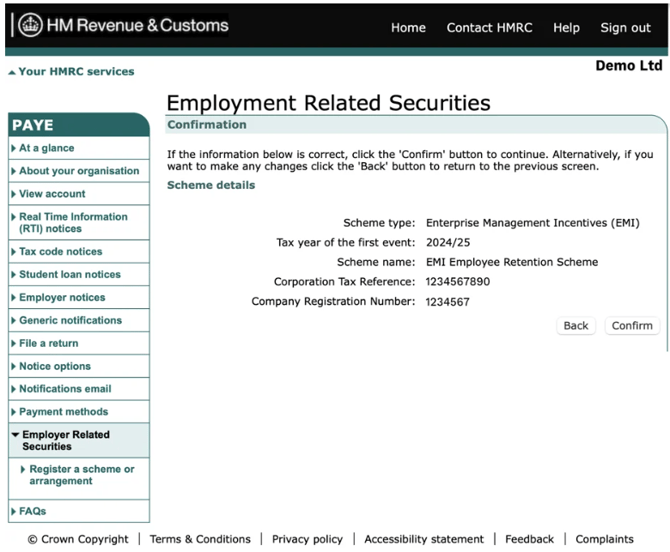
9. Clicking Next will confirm your submission and register your EMI scheme!
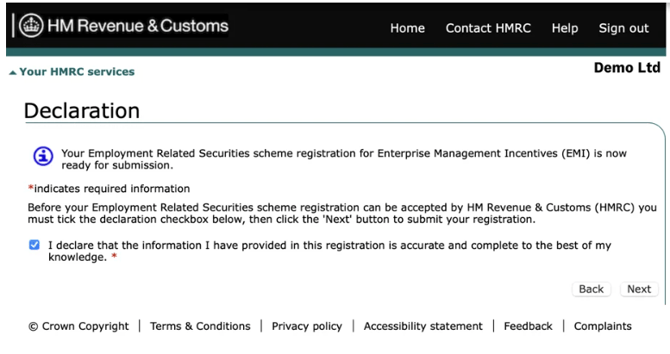
You won't need to do this process again as all subsequent EMI notifications can be made on this scheme – regardless of their 'design' or grant date.
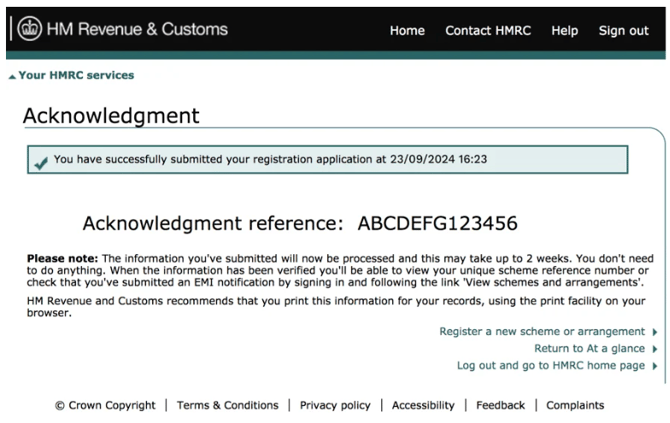
Note: HMRC may log you out after submission due to a security check — your information is saved.
After submitting
- Log back in to retrieve your scheme registration acknowledgement reference number.
- Keep this safe.
- The scheme may take 24+ hours to become active.
Step 2: Access your registered EMI scheme
Once your registered scheme is live you are ready to submit your initial notification.
- Log in to PAYE Online -
- Go to Employment Related Securities (ERS)
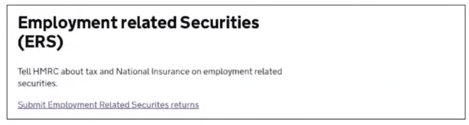
3. Select View schemes and arrangements / Submit returns and notifications
4. The scheme you registered will show as Open
5. Click your EMI scheme name to start your initial notification
Step 3: Submit your Initial EMI Notification
You then will see the options for the type of notification.
Choose the notification type
1. Select In‑Year Notifications
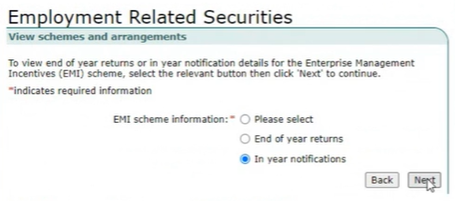
FYI: End of year returns is for your Annual notification submission.
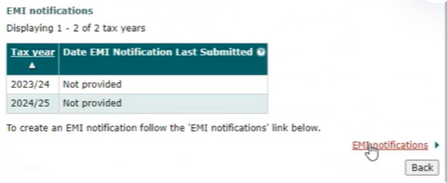
On the next page you will see a list of previously submitted notifications or Not provided if there have not been submissions.
3. To continue click EMI notifications
4. On the next page choose Create an EMI Notification for (Company Name) at the bottom of the page.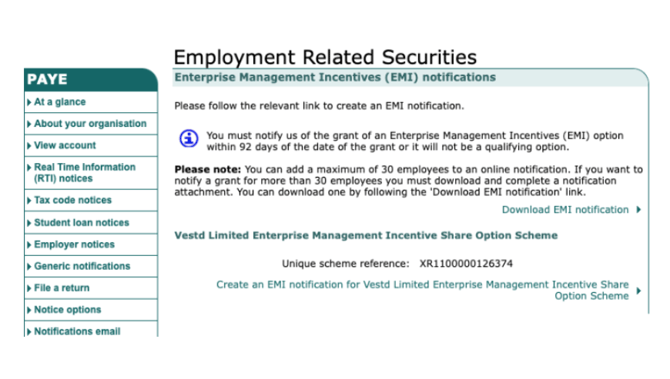
Enter grant details
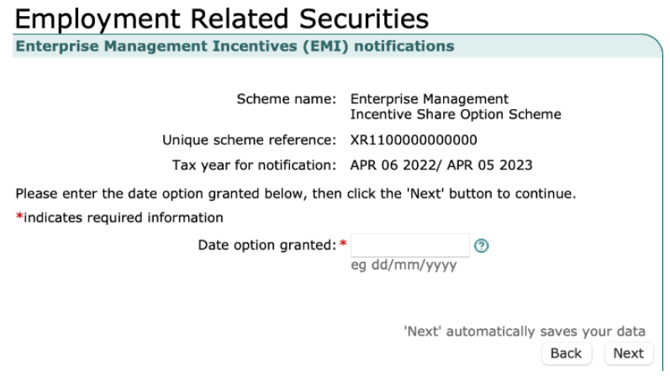
5. Tax year: The tax year in which the options were granted
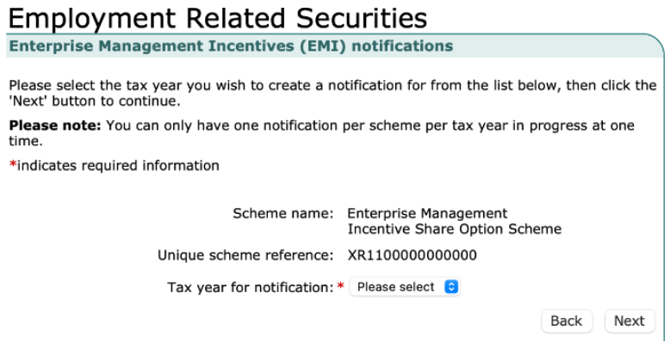
6. Grant date: The date the options were granted (not the vesting start date, the date the scheme went live)
Answer key questions
7. Replacement options?
→ No (as this for new EMI grants)
(If your company has completed a flip or rollover agreement, select Yes. You can learn more about flips in our dedicated guide)
8. Options issued by the employing company?
-
- Yes if the company with the PAYE reference granted the options (i.e. If the recipient is employed by the same company that has granted the options.)
-
- No if you registered under a subsidiary PAYE reference and the holding company granted the options (i.e. If the employing company is different from the company granting the options.For example, EMI options may be granted by the holding (or “Top Co”) company, while the recipient is employed by a subsidiary company.)
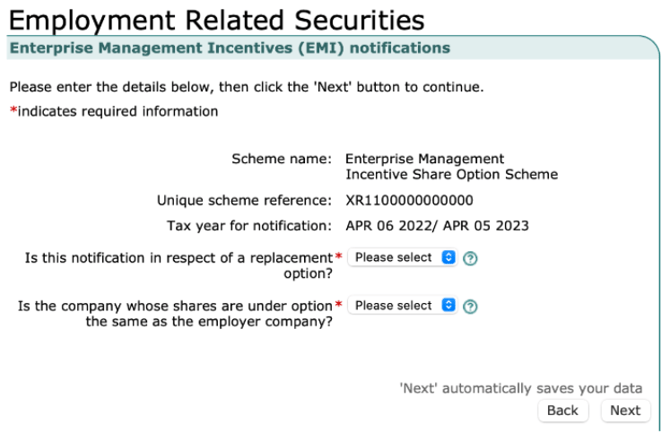
9. You’ll then enter the holding company details when prompted
Step 4: Complete company and share details
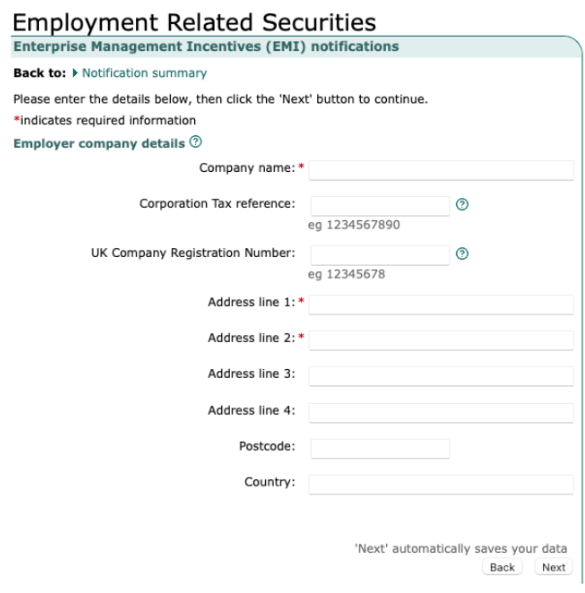
Company details
1. Only fields marked with a red asterisk (*) are required:
- Company name*
- Address line 1*
- Address line 2*
Share and valuation details
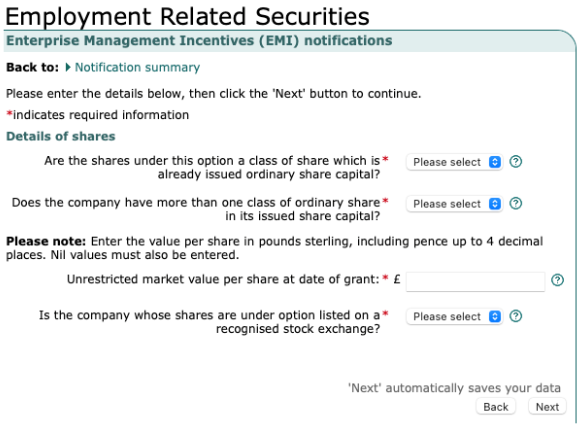
2. You’ll be asked:
- Are the options over an existing share class with shares already in issue?
- Yes → if shares already exist (i.e. If shares are already in issuance within that class)
- No → if this is a class with no issued shares (i.e.this is a class with no shares in issue yet )
3. Does the company have more than one share class in issue?
- Yes if multiple classes already exist. (i.e. if there are shares issued in more than one share class. The share class can exist/authorised but may only have shares issued in one class so its about if there are shares in issuance)
-
- Use the UMV from the valuation covering the grant date
- You can find this in the Valuations section of Vestd
5. Are the shares listed on a recognised stock exchange?
Yes/No
6. Was the valuation agreed with HMRC?
Select Yes if you received an HMRC acceptance letter
7. HMRC Valuation Reference Number
Enter this if your valuation was HMRC approved (this is your company number)
Step 5: Upload the employee spreadsheet
Vestd generates the EMI employee spreadsheet for you.
- On Vestd: Share Schemes → Initial Notifications → Submit Initial Notification
- Download and review the spreadsheet
- Do not change the format
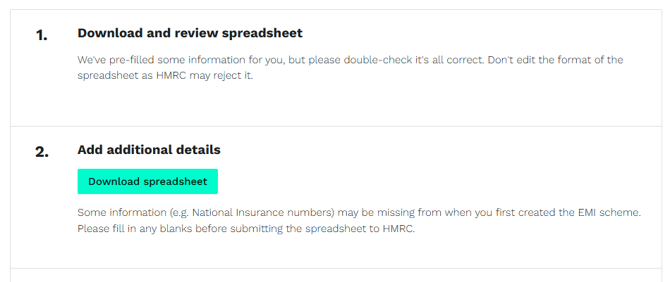
4. Upload the .ods file to HMRC under Employee Details in the ERS portal
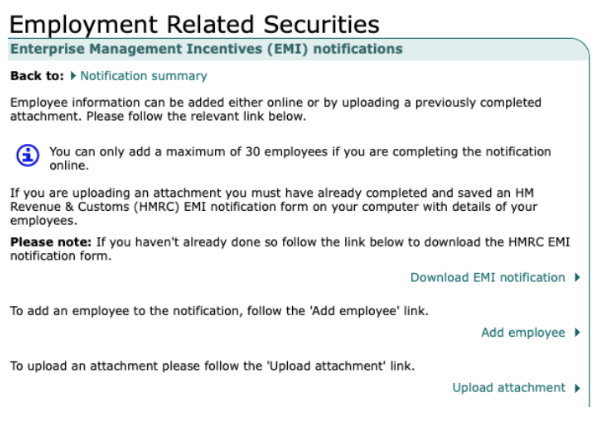
Step 6: Review and submit
1. Ensure all sections show a ✓
2. Click Next
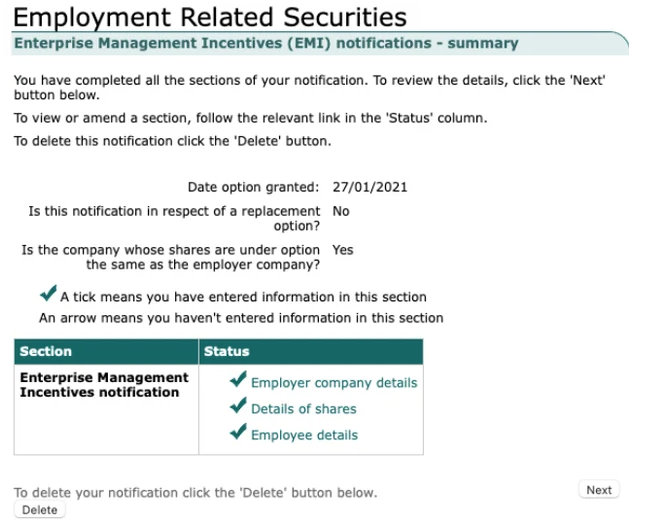
3. Review the summary page carefully
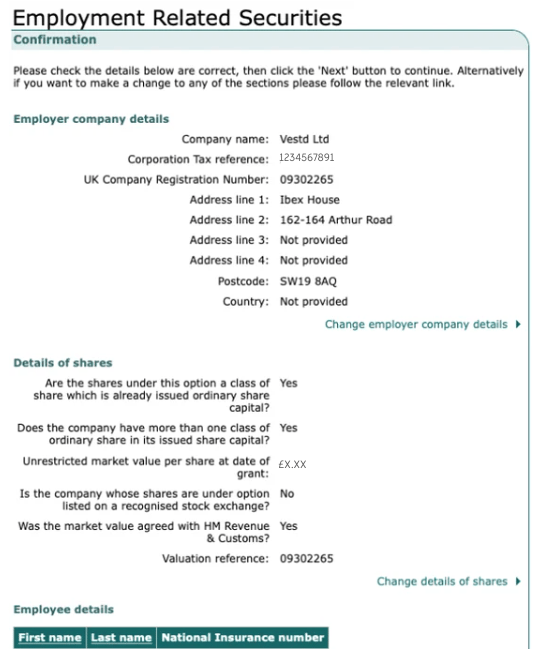
4. Confirm and click Next to submit
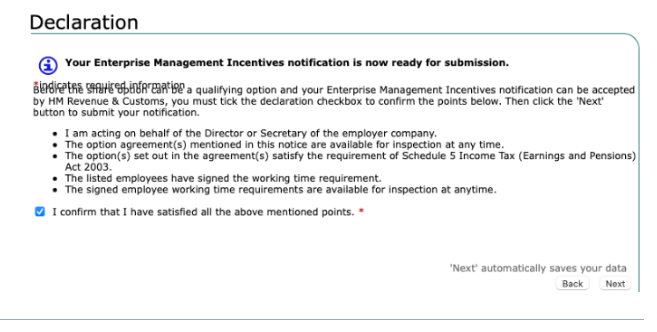
HMRC will log you out after submission — this is normal. Log back in to retrieve your acknowledgement reference number.
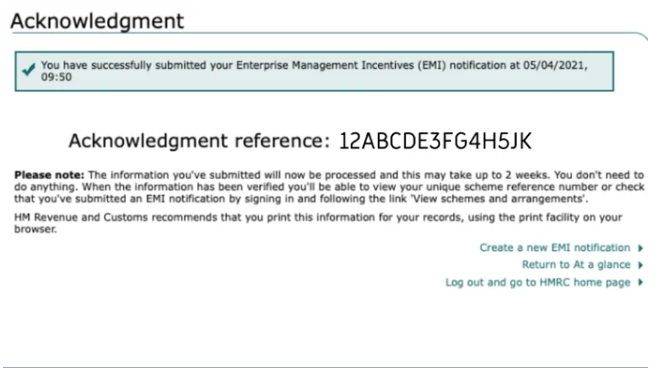
Step 7: Save your confirmation and records
HMRC does not send confirmation emails and does not keep copies of your spreadsheets.
After submitting:
- Log back into PAYE Online
- Retrieve your acknowledgement reference number
- Store it safely
On Vestd
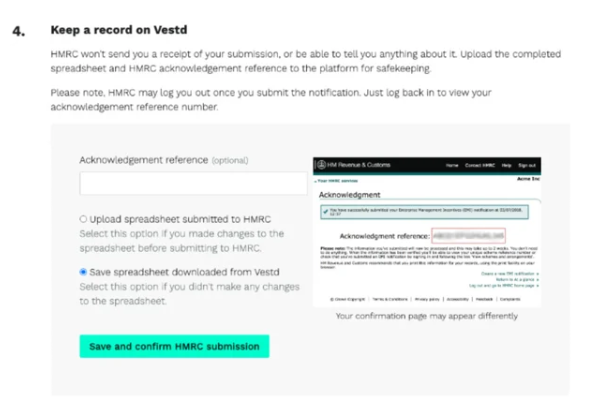
- Go to Share Schemes → Initial Notifications → Submit Initial Notification
- Scroll down to step 4 and enter the acknowledgement reference
- Upload the spreadsheet used for submission
Need help?
If you have any questions, our dedicated Customer Success team is here to help: support@vestd.com
Not onboard yet? Hop on a call.