
Before you start: You'll need an authorised share pool set up on Vestd. If you haven't done this yet, see How do I authorise a Share Pool on Vestd?.
Contents📋
Step 1: Go to Issue shares
From the left menu, go to Share capital > Issue shares.
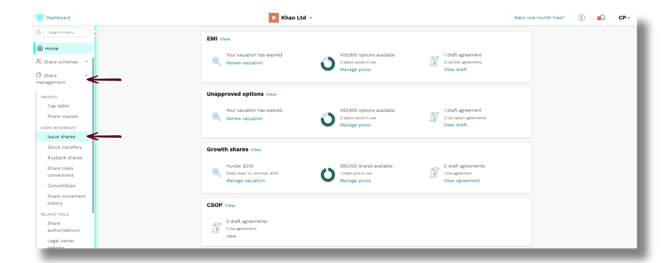
Click Issue shares.
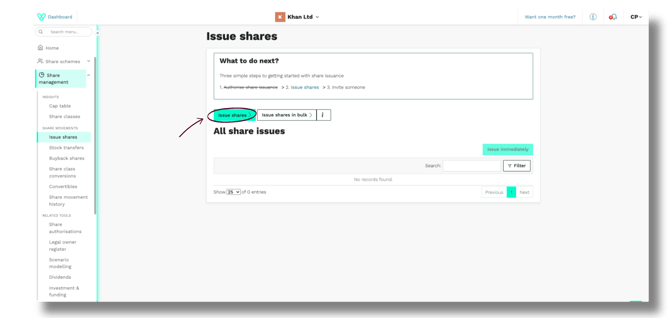
Step 2: Share issuance details and add a shareholder
In the Reference box, give this share issuance a reference. Then select the correct Share authorisation from the dropdown.
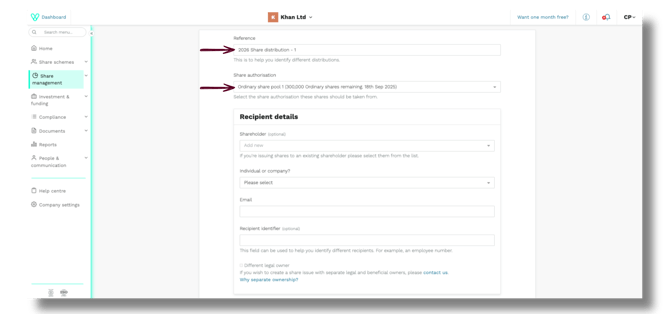
Adding a shareholder
If you're issuing shares to an existing shareholder, type at least 3 letters of their name and select them from the drop-down menu.
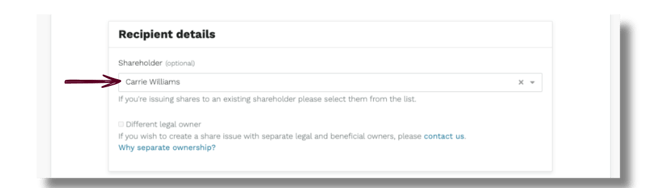
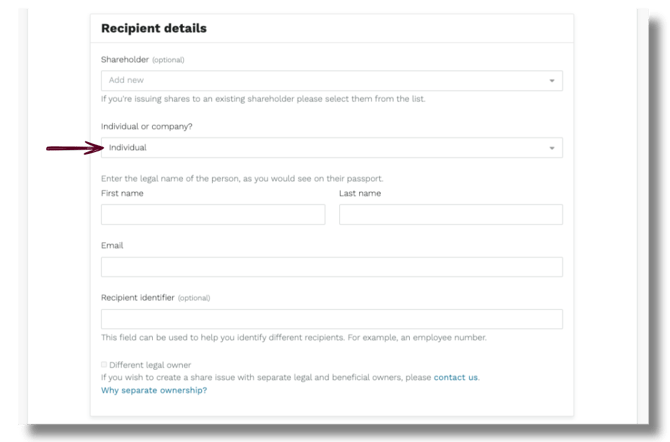
If you're issuing to someone new, choose Individual or Company from the drop-down and enter their name and email address.
Individual
Company
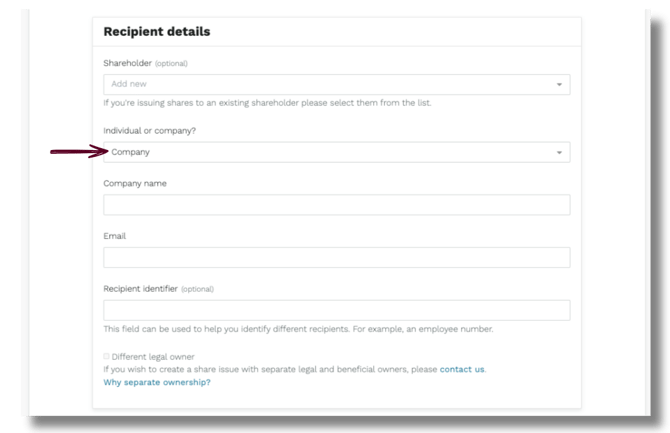
No email will be sent to them at this stage, you'll choose when and whether to contact them in a later step.
Step 3: Enter the share issuance details
Required fields
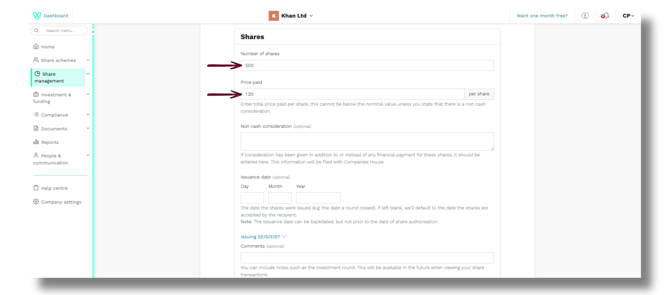
Fill in the following required fields:
- Number of shares – how many shares are being issued
- Price paid per share
Optional fields
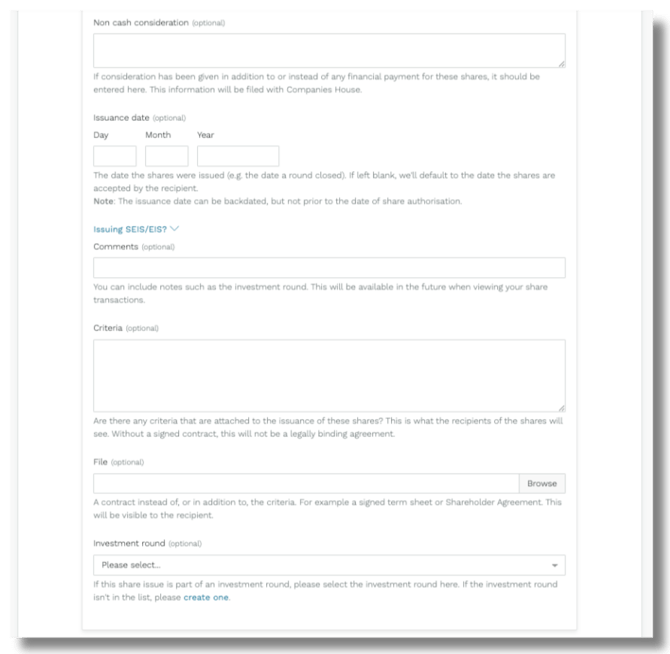
The fields below are optional (skip them unless they apply to your situation):
Non-cash consideration: Use this if anything other than money was exchanged for the shares (e.g., services or intellectual property). This will be filed with Companies House.
Issuance date: The date the shares were issued (e.g., the date a round closed). The issuance date can be backdated, but not prior to the date of share authorisation. If you leave this blank, the date will default to the date the shareholder accepts the offer, or the date you click Issue immediately (see step 6) — depending on what you choose in Step 5.
Issuing SEIS/EIS? If both SEIS and EIS shares were issued in the same round, make sure all SEIS issuances are dated before EIS.
Comments: Any notes you want to save alongside this issuance (e.g., the investment round name). These will be visible when viewing your share transactions in future.
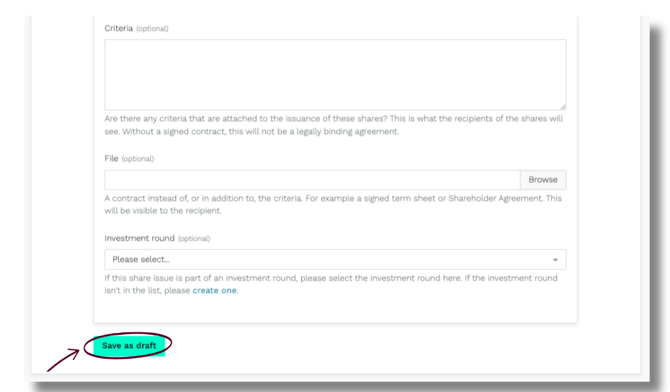
Criteria: Any conditions attached to the issuance of these shares. This is what recipients will see. Note: without a signed contract, this is not a legally binding agreement.
File: Upload a supporting file (e.g. the criteria in a PDF, shareholder agreement, term sheet etc)
Investment round: If this share issue is part of an investment round, select it here. If the round isn't listed, create one first.
Step 4: Save as draft
Click Save as draft (bottom left). Nothing is filed or sent yet. You can edit everything on the next page.
Step 5: Review and issue
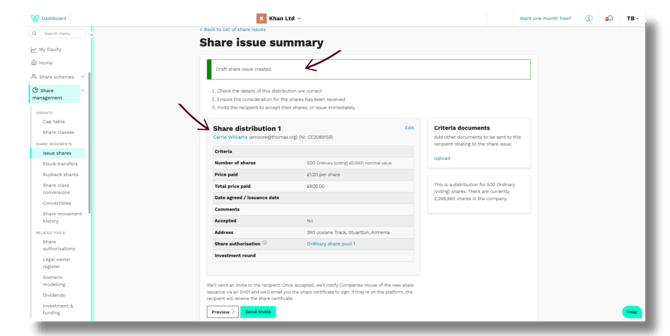
You'll land on the Share issue summary page. You'll see a green banner at the top: 'Draft share issue created.'
Take a moment to check the details. If anything needs changing, click Edit in the top right of the summary box.
When you're ready, choose one of the following:
Option A: Send invite
Click Send invite to email the shareholder and ask them to accept the share offer. You can preview the email before it goes out by clicking Preview.
- Vestd will file the SH01 with Companies House on your behalf
- If you left the date blank in Step 3, the issuance date will be set to the date the shareholder accepts the offer
- If the shares relate to a specific date (like an investment round), go back and enter it in Step 3 before sending

When you click Send invite, you will see a pop up:
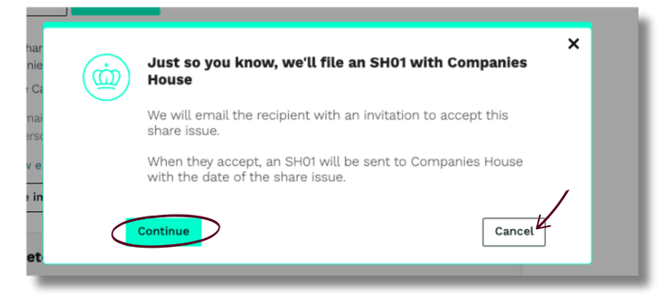
Click Continue to proceed or Cancel to go back.
Option B: Issue immediately
Click Issue immediately to issue the shares without requiring the shareholder to accept. They won't receive an email, but all relevant forms will be submitted to Companies House.
- Vestd will file the SH01 on your behalf
The issuance date will be set to the date you click Issue immediately, unless you entered a date in Step 3

When you click Issue immediately, you will see a pop up:
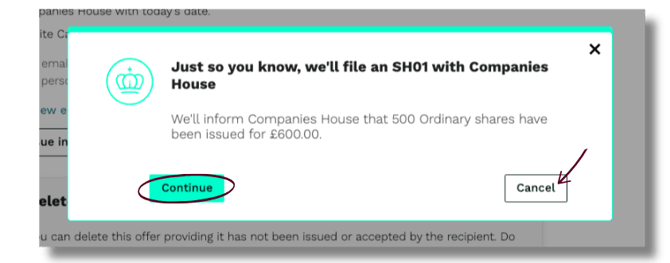
Click Continue to proceed or Cancel to go back.
Changed your mind?
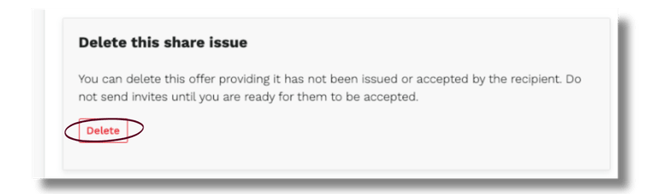
Scroll to the bottom of the page and click Delete to scrap the draft entirely.
Step 6: Share certificates
Once shares are issued, Vestd automatically generates the share certificates and files the SH01 with Companies House.
To access your share certificates:
Go to Documents > Share certificates.
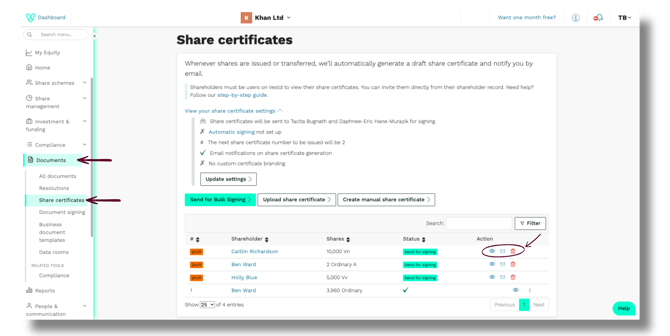
From here you can manage each certificate:
| Action | How |
|---|---|
| View | Click the eye icon |
| Send for signing | Click the envelope icon, then confirm when prompted |
| Delete | Click the bin icon |
Need support?
If you have any questions, our dedicated Customer Success team is here to help: support@vestd.com
Not onboard yet? Hop on a call.
Our team, content and app can help you make informed decisions. However, any guidance and support should not be considered as 'legal, tax or financial advice.'